
" height="39.77198px" id="BKLRi9ayM" transform="translate(2 3.808)" width="44px"/></svg>)
Last Update : 05 May 2026
7-steps Editing Guide
Learn the basics of editing your new template so that you can get your website up and running as fast as possible. 7 steps and your website will be ready, done in a few hours.
Introduction
Welcome aboard.
You just saved yourself hours of setup. This guide covers everything you need to get familiar with the template structure and make it yours — fast, and without headaches.
Haven't grabbed a template yet? Browse the collection.
Important notes
A few things before you dive in.
This guide is built to get you live as fast as possible — not to cover every edge case. Since Framer evolves constantly, some details here may be slightly out of date depending on when you're reading this.
Screenshots are pulled from various templates, so yours might look a little different — but the logic is the same.
New to Framer entirely? Start with the Framer Fundamentals course first. This guide will make a lot more sense after.
The basics
1 - Colors
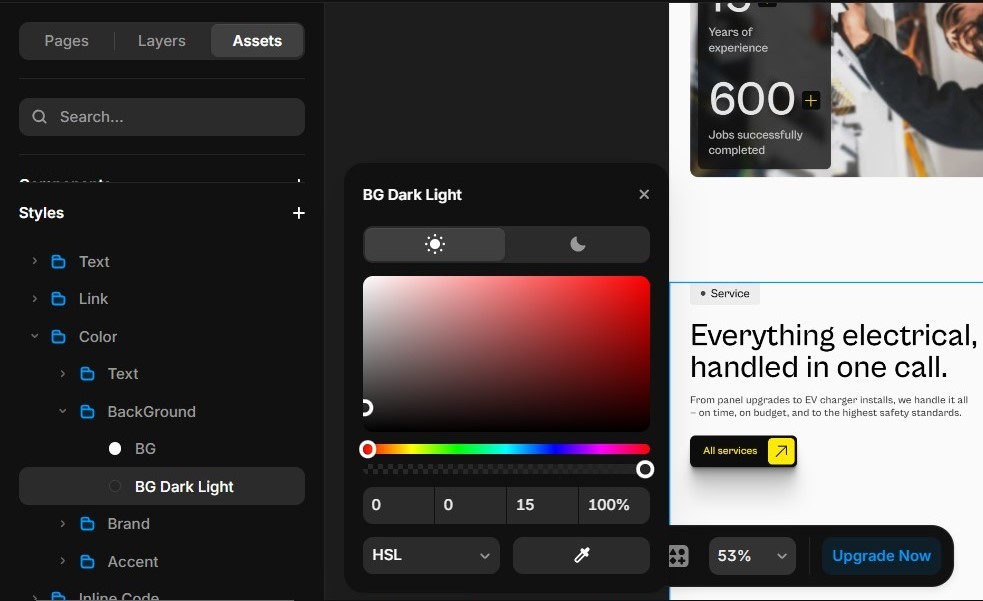
To edit the colors:
Click the "Assets" tab at the top of the left panel.
Scroll down to the "Styles" section.
Click on the folder named "Color".
Click one you want to edit and use the color picker or enter a HEX/HSL code.
Start with the colors that move the needle most — brand colors first, then the BG - and Text - variables. Those two control the majority of your site's look and feel, so getting them right early saves a lot of back and forth.
2 - Text & Typo
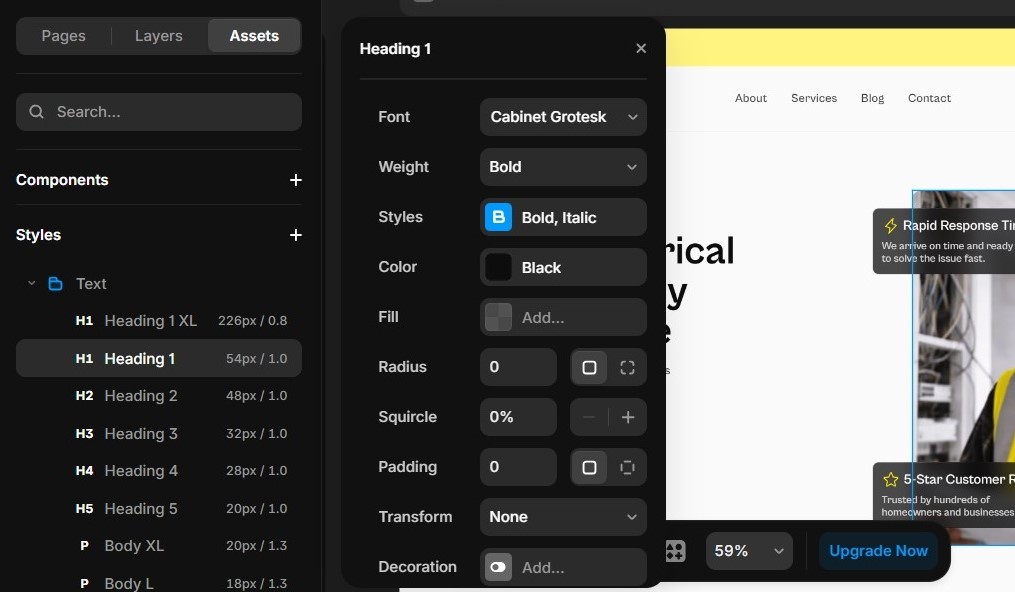
Font styles are set up to work out of the box — no need to touch them. But if your brand has a specific typeface, you can swap it the same way you'd edit colors.
Click the "Assets" tab at the top of the left panel.
Scroll down to the "Styles" section.
Click on the folder named "Text".
Find the styles you want to edit.
Click one you want to edit and change things like the font, font weight, and other properties.
3 - Images, content, and components
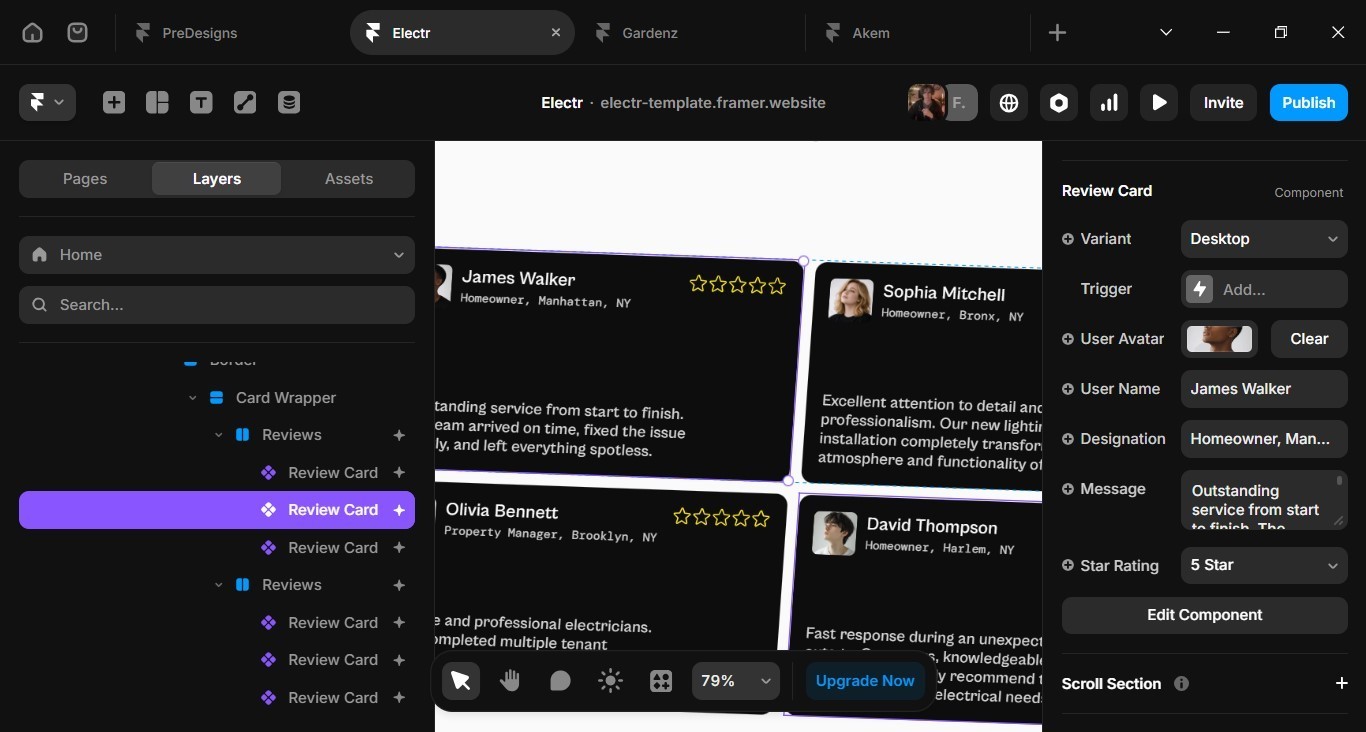
The most impactful edit you'll make — swapping in your real content. Every text block and image can be edited by double-clicking it, or by selecting it and updating the Content or Fill field in the right panel.
Images are AI-generated and copyright-free, so you can keep them if needed — but replacing them with real visuals from your project will always make a bigger difference.
Components (highlighted in purple when selected) use clearly labeled variables in the right panel, making them straightforward to update without breaking anything.
4 - Links & Form
Getting your links and forms to work is probably the most important edit you need to make and great news, it's stupidly easy.
For Links ( Mail, Phone, Google Maps…)
Click on any button or link – The right panel will show you the link settings.
Paste your URL – Just drop in where you want the button to go. External links need the full
https://URL.For phone numbers – Keep the "
tel:" part and add your number right after. Liketel:+33612345678(no spaces).For email links – Keep the "
mailto:" part and add your email after. Likemailto:example@gmail.co
For your Forms
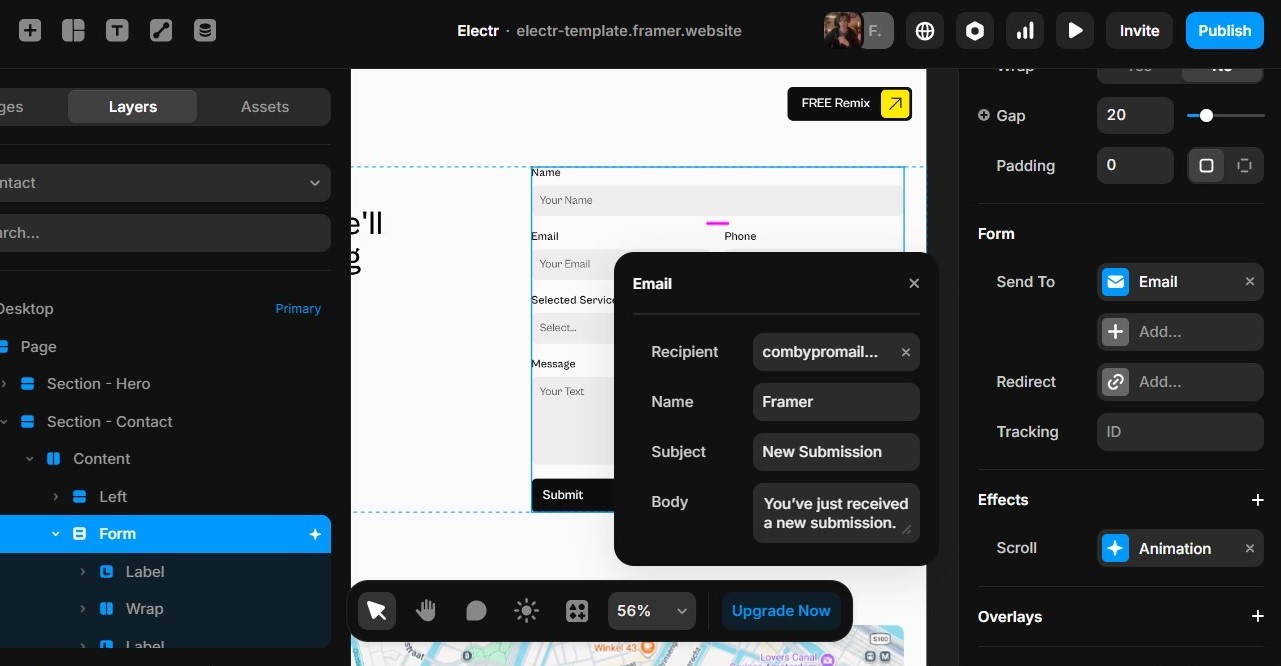
Setting up forms – Click on the form layer, then look for "Send to" in the right panel.
Add your email – Type in the email where you want form submissions to land. That's it.
Test your form – Send yourself a test message to make sure it's working before you publish.
5 - Logo
The setup will depend on the template you choose, the first option is that the logo can be replaced from the page canvas in the right panel, look for "Logo" in the Template Zone of the right panel. If this is the case, make sure to edit the logo on every pages.
The other option is that the logo is set up as a component which means you only need to change it inside of the component.
Click the "Assets" tab at the top of the left panel.
Scroll down to the "Components" section.
Open the "Navigation" folder.
Click on the "Logo" component to open the component editor view.
Replace the current logo ( Img SVG ) by your logo ( right panel )
The Logo component may not be the same as the one in the footer ( for file-load optimization ) so make sure to also edit the logo in the footer.
The logo component has a fixed width set to fit the template. Since your logo keeps its aspect ratio, it scales automatically — just adjust the component width on the page if it looks too small or too large.
6 - Header & Footer
The Header and Footer are components, just like the Logo. Some content can be edited directly on the page, but most changes need to be made inside the component itself. In both cases, it's straightforward — mostly a few text blocks and links to update, for example:
Location, Phone Number… in the Header.
Copyright information in the Footer.
Email & Phone Number in the Footer.
Social media links in the Footer.
Address in the footer
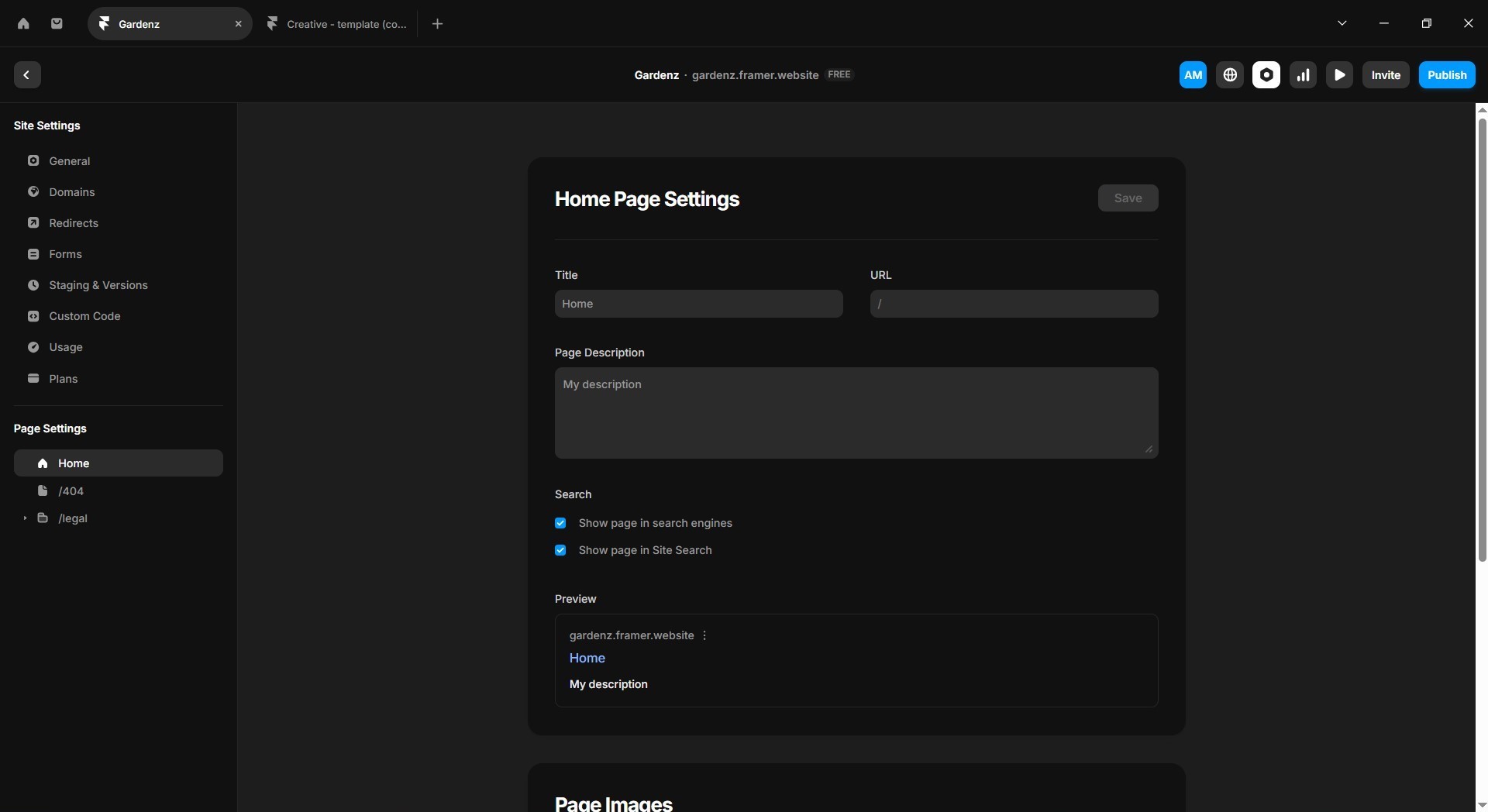
7 - Site Settings & Publication
Customize your site details
Open Site Settings – Click the gear icon in the top toolbar or go to the site menu.
Update your site name – This shows up in browser tabs and search results.
Add a favicon – Upload a small square image (at least 32x32px). This is the little icon in browser tabs.
Set your SEO title and description – Help Google understand what your site is about. Keep the title under 60 characters.
Add social preview images – Upload images that show up when people share your site on social media.
Connect your domain – If you have a custom domain, add it here. You'll need to update DNS settings with your domain provider
How to connect my custom domain?
Going live with your site
Hit the Publish button – Top right corner, can't miss it.
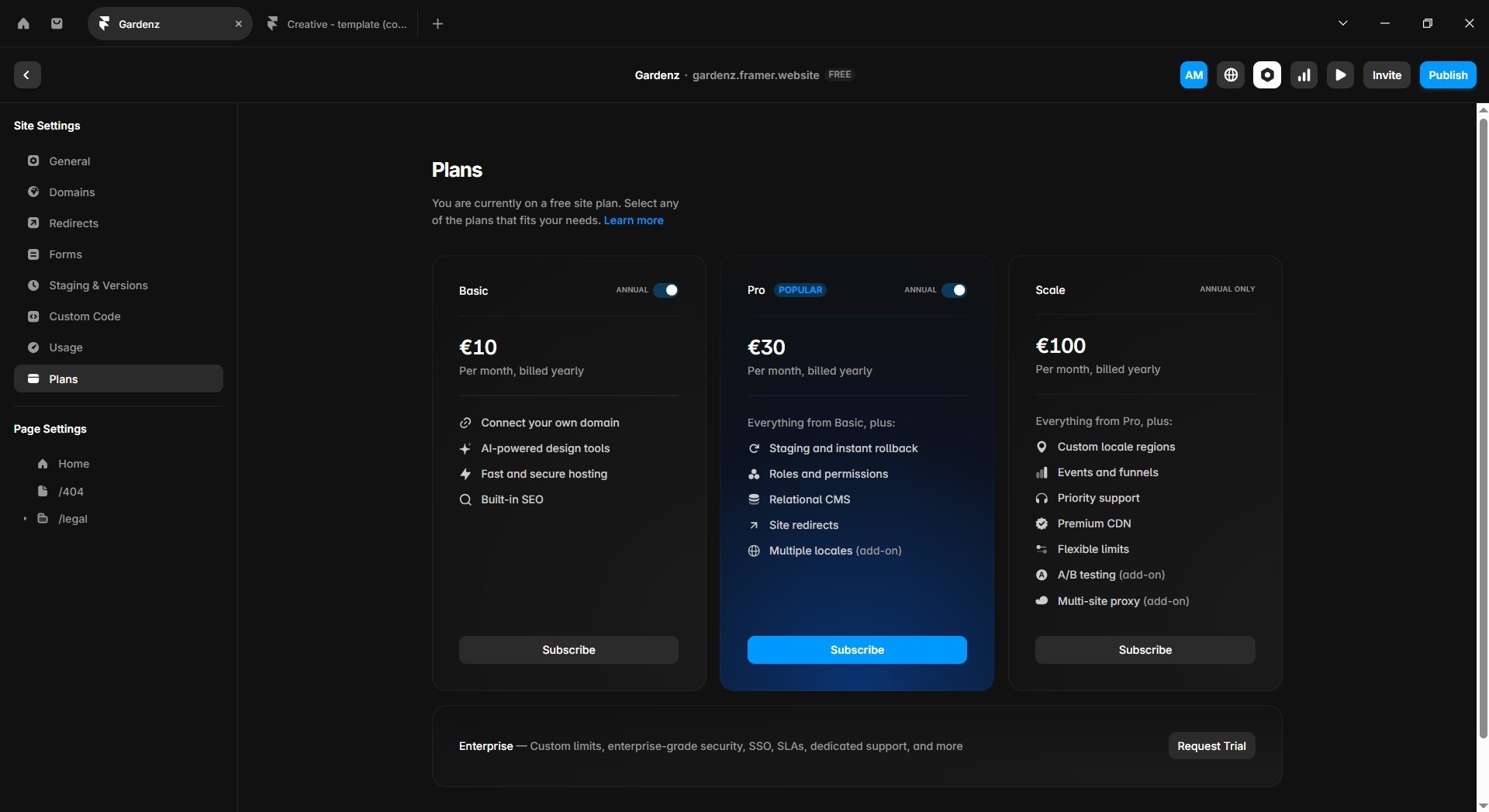
Choose your plan – Free sites get a framer.website subdomain. For custom domains, you'll need a paid plan.
Get 3 months free using code PARTNER25PROYEARLY – Apply this at checkout to save on your first year.
Publish your changes – Every time you edit, remember to republish. Your changes won't go live automatically.
Check your live site – Open it in a new tab and click around. Make sure everything looks right.
Share it with the world – You're done. Send the link to your friends, post it, whatever.
That's It, You're now ready.
Publish your website and get results tomorrow.
Featured Templates
2
/
2
Frequently Asked Questions?
Feel free to reach out if you have any other questions.
How do I use Framer templates?
Do I need to know how to code?
Can I use your templates for commercial projects?
Can I use your templates for multiple projects?
What's the refund policy?
Do I get support after purchasing a template?
Will your templates receive updates in the future?